
How to Manage Custom Branding on a Team
- Adding Team Branding to a New Team
- Adding Team Branding to an Existing Team
- Some examples of what to expect with your Team Branding
- Editing or Removing Team Branding from an Existing Team
What is Team Branding?
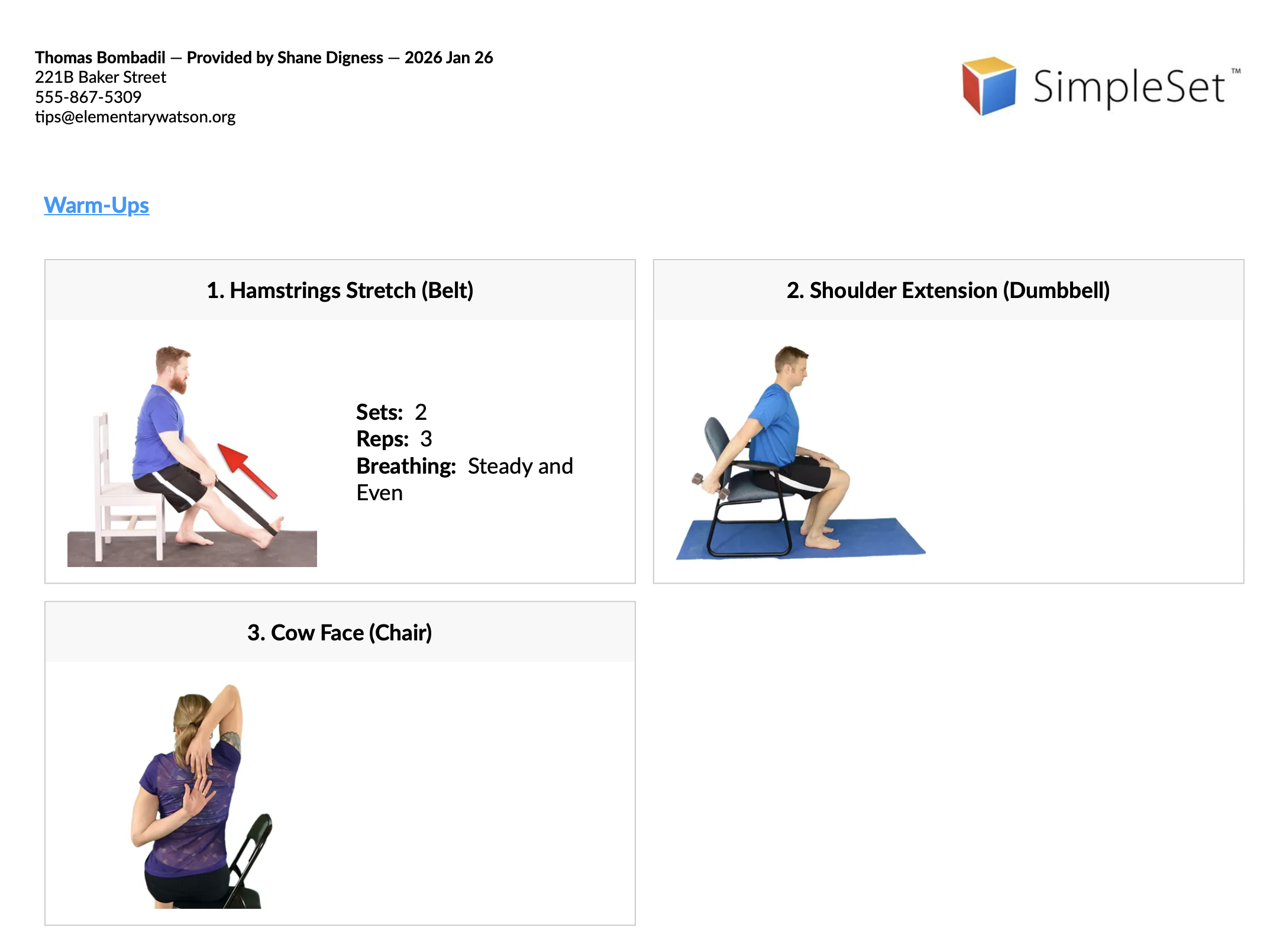
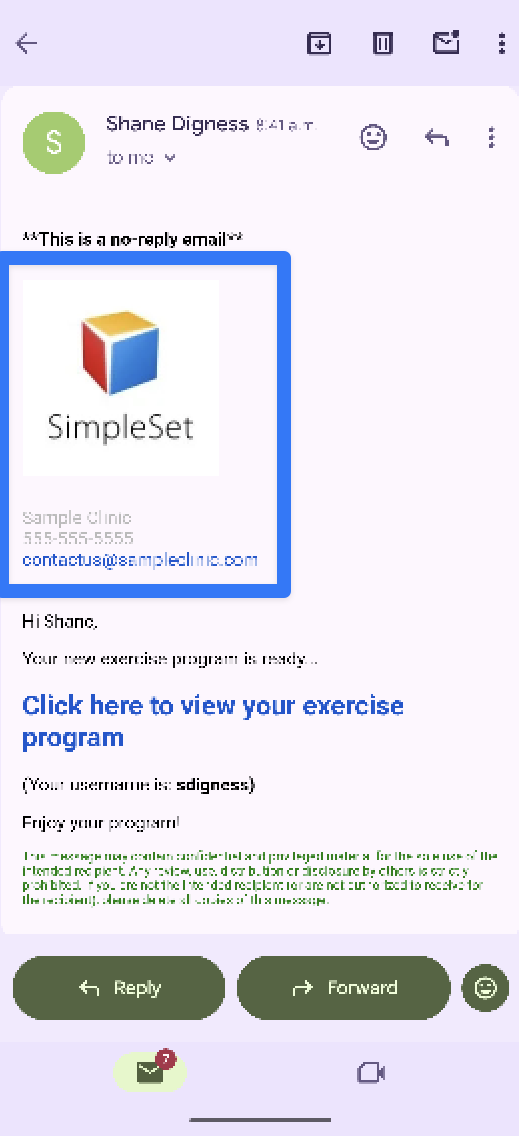
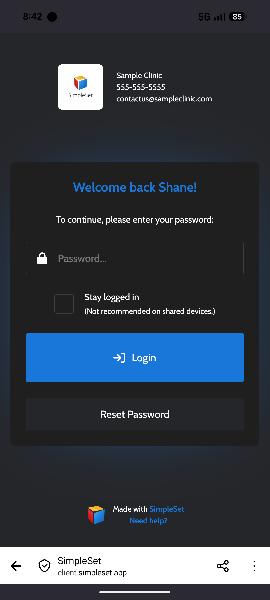
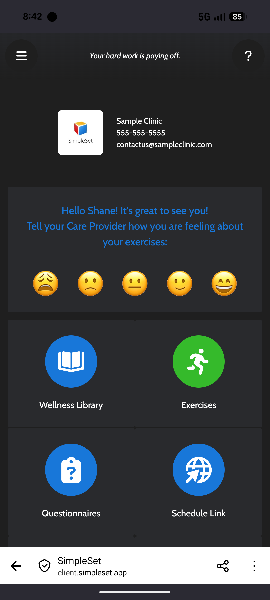
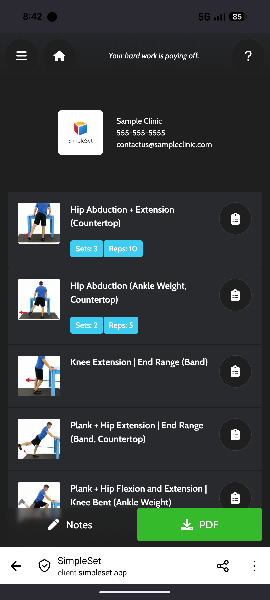
Every communication your client receives, from emails to exercise handouts and the online Exercise Portal, features your specific branding. By utilizing Team Branding, you can quickly establish a consistent look and feel for all users within a Team. This ensures that every program delivered to your clients meets your clinic's professional standards.
Adding Team Branding To a New Team
- When creating a new Team, you can add Team Branding during that process
- See Step 4 in Create Your Team
Adding Team Branding to an Existing Team
If you did not add Team Branding while creating your Team, or you have Teams that existed before this feature was added, you can still add Branding after the fact
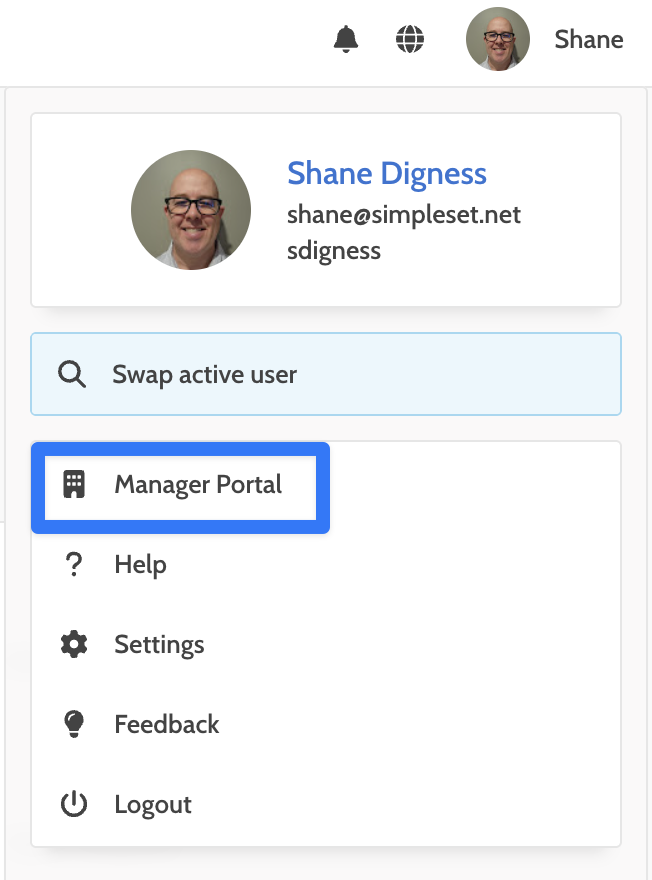
- Access your Manager Portal by clicking your profile in the top right corner and choosing Manager Portal
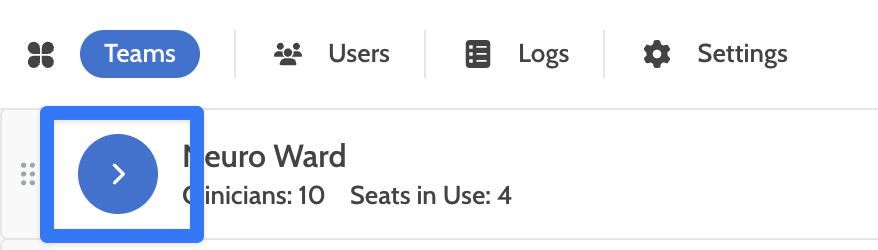
- Under the Teams area, select the Team that you wish to add Branding to by clicking the blue circle with the arrow beside the Team name
- Click the Team Settings button on the right side of the screen
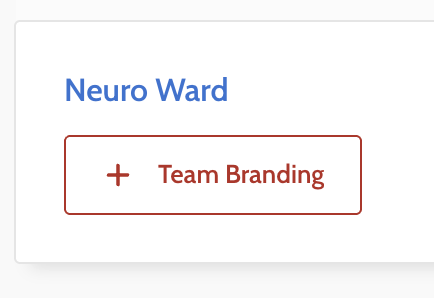
- Choose the Team Branding button
- You can now upload your Teams logo and fill in other relevant information such as address, phone, email or whatever else is consistent across the entire team
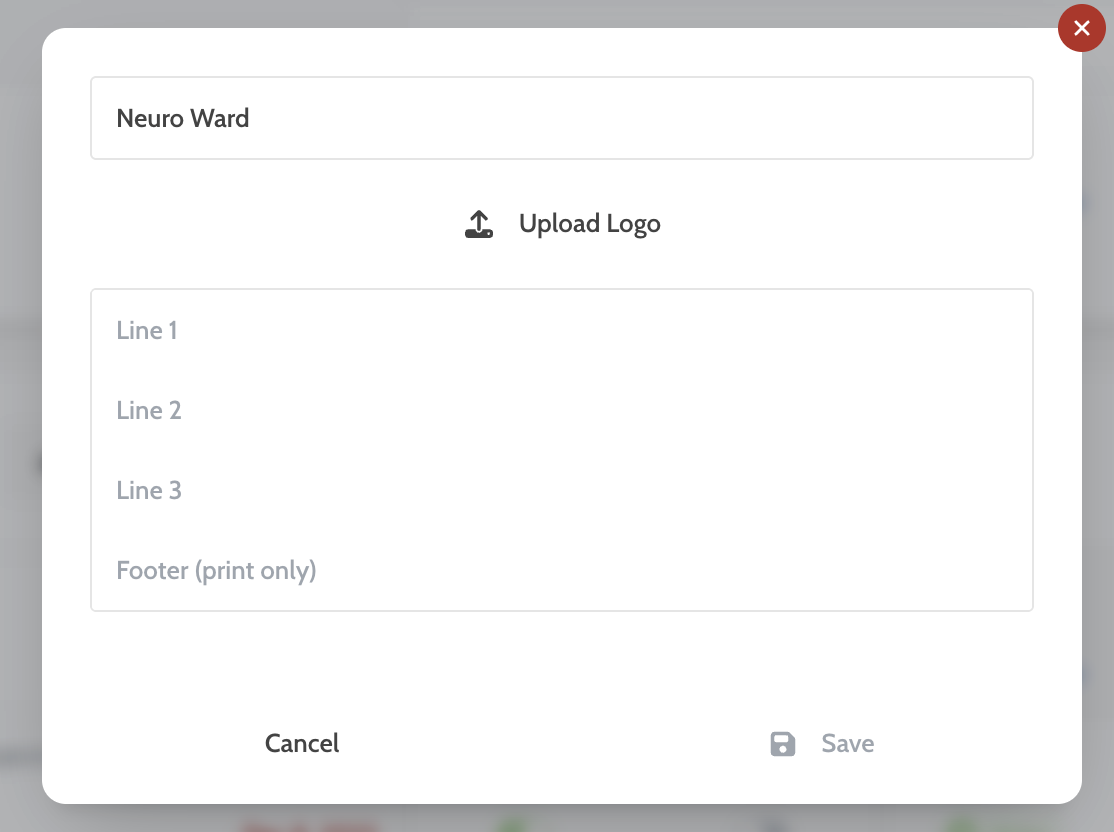
- Once filled in, click Save.
- Your branding will be reflected on reports, emails and in the online exercise portal.
Some examples of what to expect with your Team Branding
|
Exercise Program |
|
|---|---|
|
|
|
|
|
Portal |
|
|---|---|---|
|
|
|
|
Editing or Removing Team Branding from an Existing Team
If you have Team Branding set up for a Team already but something has changed, you have the option to change or remove existing branding.
- Access your Manager Portal by clicking your profile in the top right corner and choosing Manager Portal
- Under the Teams area, select the Team that you wish to add Branding to by clicking the blue circle with the arrow beside the Team name
- Click the Team Settings button on the right side of the screen
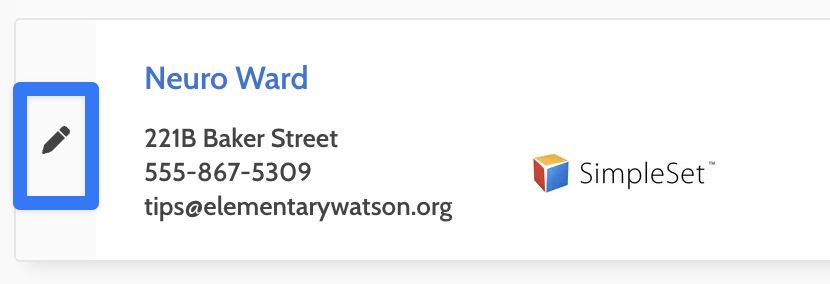
- You will see the existing branding under the Team name, click on the pencil icon to begin editing
5, You can make any changes you want, including removing the logo or changing it, and removing or changing the information previously added. You can even clear everything to get rid of the Team Branding all together
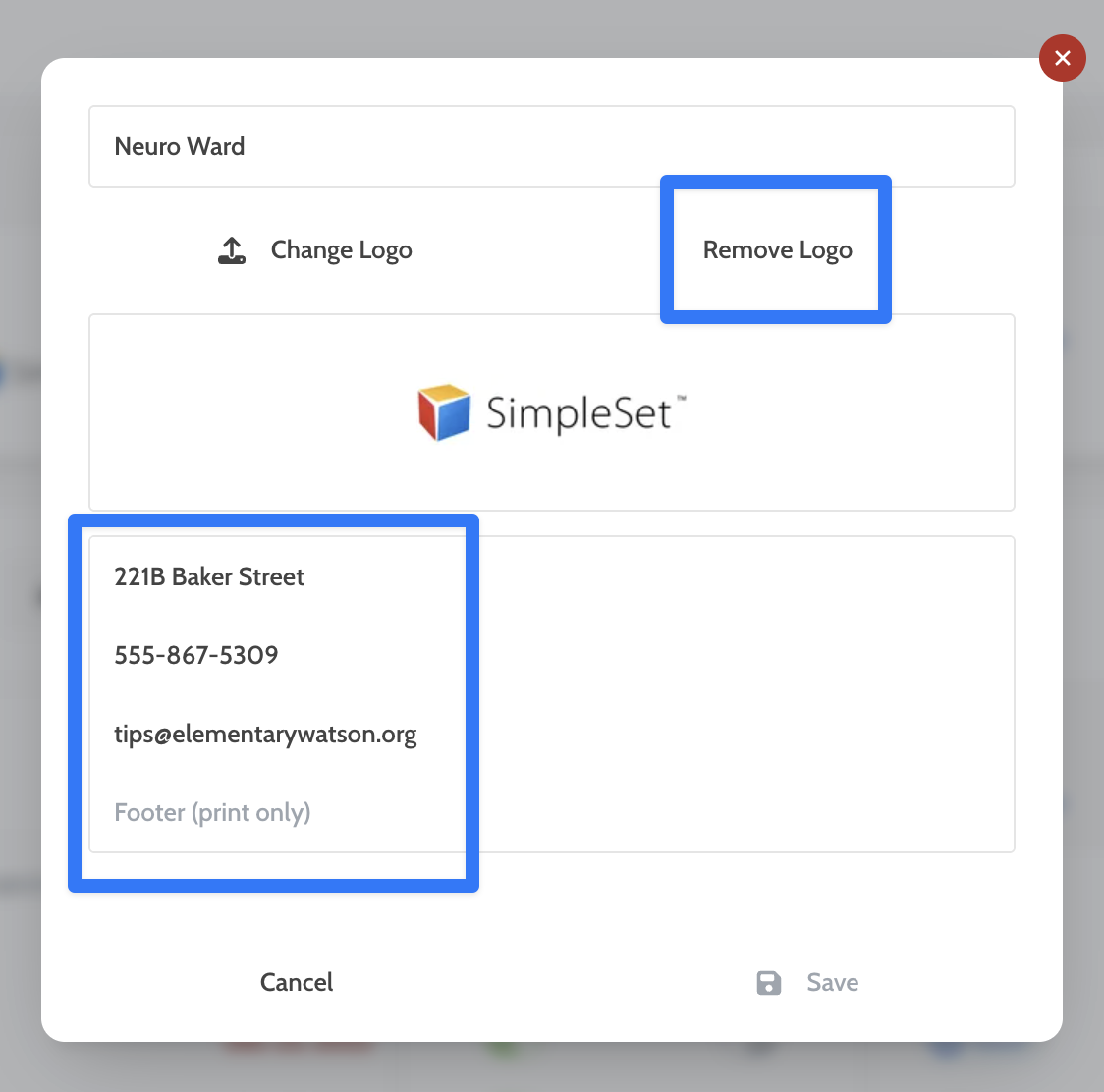
- Once you have made any changes, you can click Save to apply them