Using Stock Templates
Locating Stock Templates
- Navigate to the Templates tab

- Select the SimpleSet tab

- Use the Search box to find the Stock Template you are looking for

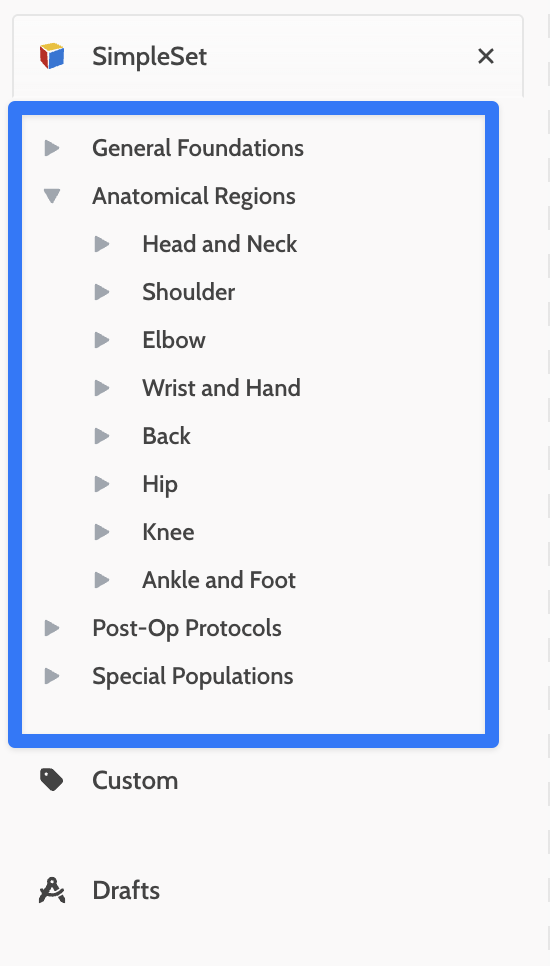
- You can also navigate through the Category Tree to find what you are looking for if you are not certain of the name but know certain characteristics such as anatomical regions, post-op protocols and more!
Previewing Stock Templates
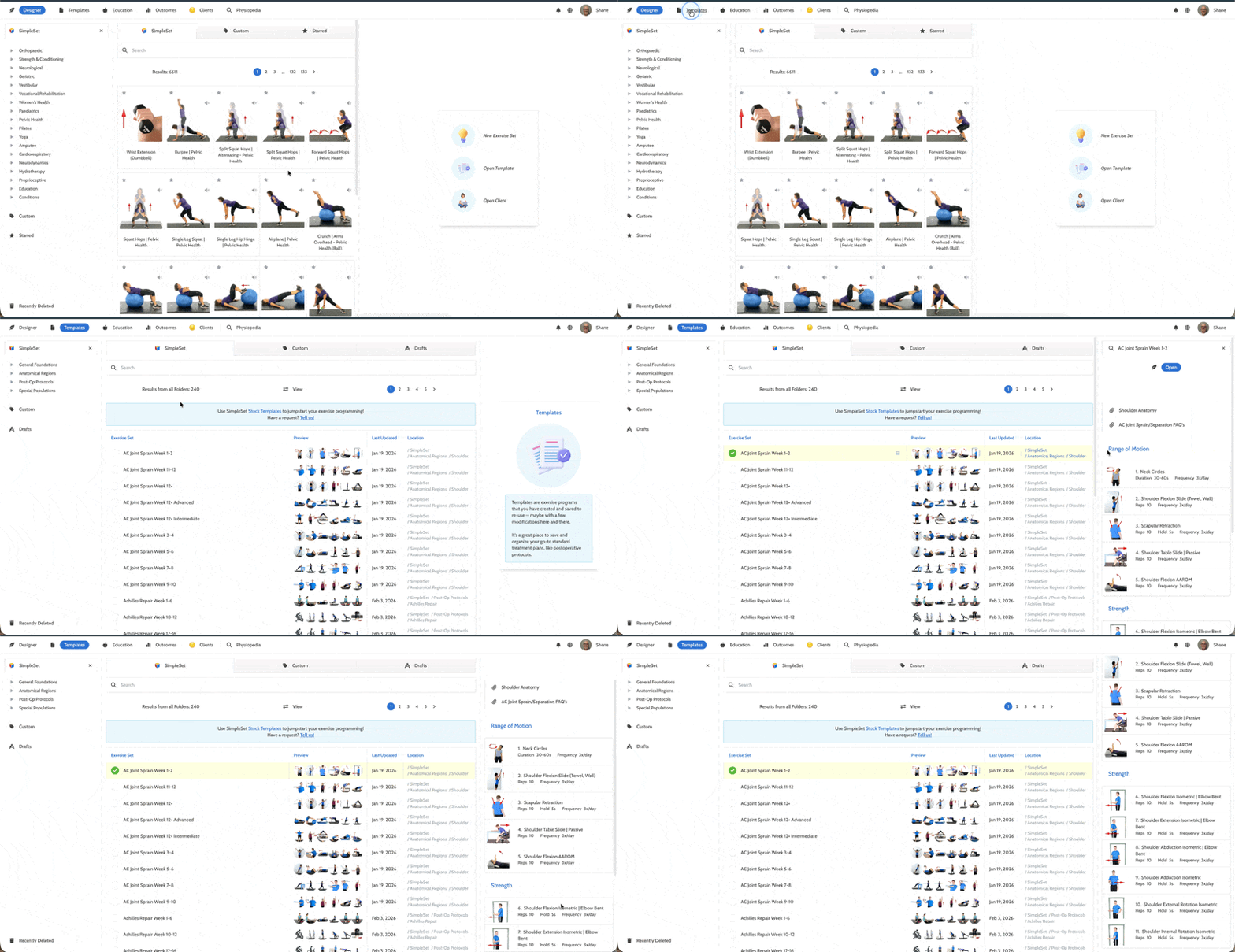
- To view the stock templates as provided by SimpleSet, navigate to the Stock Templates as discussed above and click the space next to the template you wish to view. A preview will open on the right side of your SimpleSet window
Loading Stock Templates
- To load a Stock Template into the Designer, click the name of the Stock Template and it will open up in the Designer
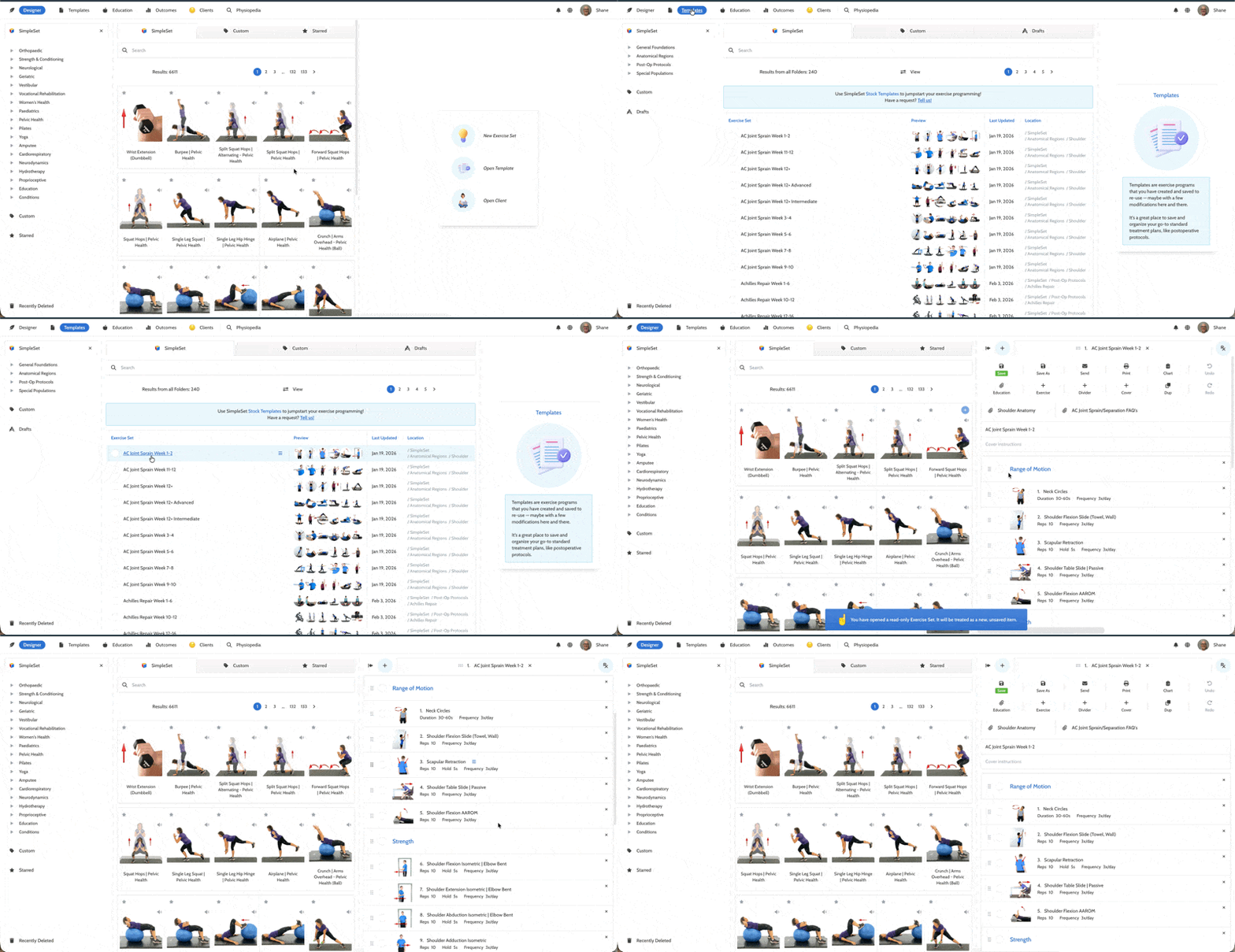
- At this point, you have the option to send this Template to a client as is without further modification
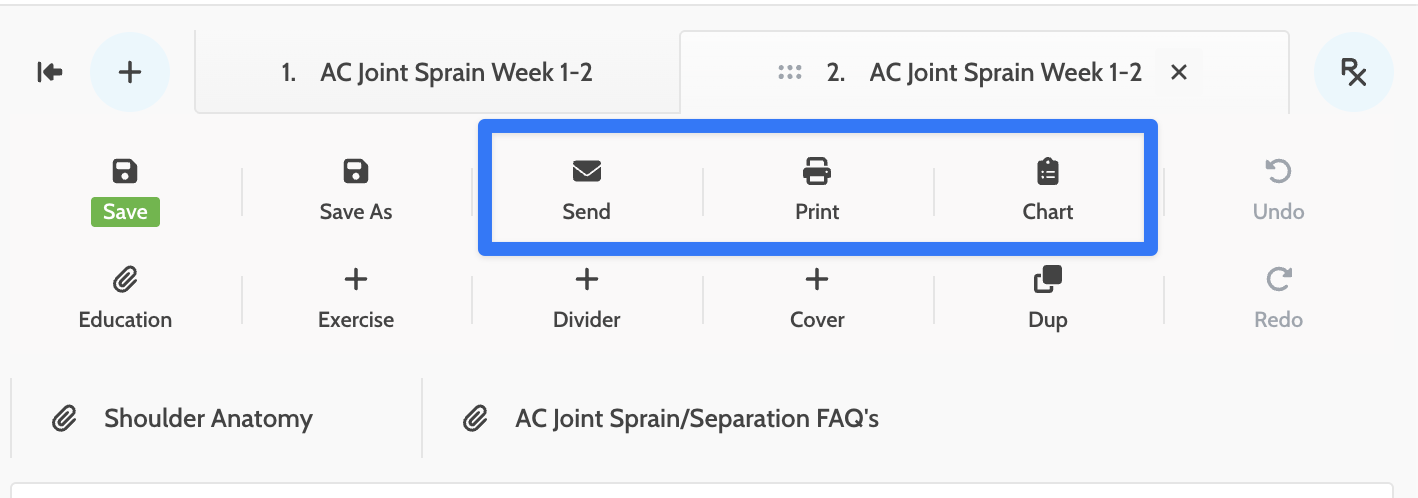
- If you wish to email this to a Client or print it out, you can use the buttons above exercises to Send, Print or Chart the Template
Customizing Stock Templates
- You also have the option of customizing a Stock Template, creating a Custom version of the Template that includes any specific details you wish.
- You can customize the following to match your style of treatment:
- Template name
- Description and cover instructions
- Add or remove exercises to make this your own
- Modify any parameters on the individual exercises (pro-tip: use Parameters if you have any set up that meet your needs!)
- Add Dividers
- You can Save any changes you make as a Template and the newly created Template will show under the Templates area in the Custom tab

- Once you have your newly Customized Template saved, you can also Send, Print, Chart or assign it to a Client. This is done in the same way you would do it with an exercise set you created from scratch, using the options above the Template

